
Guide
Ultimate Guide to Secure Your Bought CoC Account and Prevent Bans & Recovery
Dec
Whether you just bought your CoC account or have owned it for months (or even years), your account may be at risk unless you take the critical steps to secure it forever.
Regardless of where you purchased your account—from our marketplace or elsewhere—read this guide to the end. Your primary goal right now should be securing your investment for the long term.
If you haven’t got your dream account yet, you can Buy Clash of Clans Account directly from our verified shop to ensure a safe start.
This guide is based on my experience selling over 2,000 accounts. In this guide, I’m going to walk you through the necessary steps you need to take right now to secure your purchased account and avoid a Supercell Ban or lock.
Table of Contents
How to Secure your Bought CoC account (Things to do after purchasing a new account)
The Supercell ID is only as secure as the email linked to it. When you purchase an account and log in to it for the first time, Supercell doesn’t let you change the Supercell ID Email address. Thus, the first thing you have to do is to change all the email security settings.
The goal is to completely change the ownership of the linked email (typically a Gmail account) so the original owner can never access it again.
Step 1: Set the Supercell ID email (Gmail) security settings
Immediately after logging in to the provided email, first use the Supercell ID to log in to the Clash of Clans account, then do the following:
-
Change the Password: Set a strong, unique, and complex password.
-
Log Out All Other Sessions: Changing the password alone often won’t disconnect the previous owner’s devices from the Gmail account. You must go to the “Manage Devices” section in the email settings (located at the bottom of the Security tab) and sign out of all active devices or browser sessions. This guarantees the previous owner is completely logged out and loses access to Gmail.
-
Change/Add 2-Step Phone Number: Change the existing 2-Step Verification phone number to your personal number.
-
Generate NEW Backup Codes: Generate a completely new set of Google backup codes and securely save them offline. The old codes are now useless.
-
Update Recovery Info: Set your phone number and your email address as the recovery number and recovery email.
The Google Security Hold
When accessing a Google account (Gmail) from a new device/IP, Google often locks access to critical security settings (like 2FA) for a short time. This is an automated anti-hijacking measure designed to protect the account — nothing to panic about.
If you are unable to immediately change the recovery details, and Google is asking for verification methods you cannot complete—such as tapping ‘Yes’ on the seller’s phone or receiving a code sent to their phone number—you are currently encountering a security hold. Now, let’s discuss the solutions for this issue.
-
Solution 1 (Contact the previous owner – Recommended): Once you log in to the Gmail account, immediately contact the seller, or if you purchased it from us, contact our Live Support. You should ask the seller (or the previous owner) to assist you in bypassing the Google security hold so that you can change all Gmail security settings. In case you purchased your account from us, by contacting our Live support, we will guide you step by step to secure your Supercell ID.
Note: The Gmail accounts we provide are already fully secured (we create a fresh Gmail account and link the Supercell ID to it). Even if you don’t change the security settings right away, your account is safe, but we still recommend changing them for your complete peace of mind.
-
Solution 2 (Wait – Not Always Recommended): If you want to change the Gmail settings without asking for help, you must wait the standard cooling-off period, which is typically 168 hours (7 full days). After this period, Google will recognize your device/location as safe and allow you to make the security changes without asking for verifications from the seller’s device or phone number, so you can change everything on your own after this cooling-off period.
If you didn’t purchase your account from us, I strongly advise against waiting 7 days. The seller could easily take back the Supercell ID email by changing the login credentials and locking you out. Then, he can simply disconnect your device from the CoC account. So, it is too risky to wait, especially for marketplaces that don’t offer a longer guarantee period or have poor after-purchase support.
However, if you bought the Clash of Clans account from us, you can proceed with this method, as the Gmail accounts are fully secured by us, and there is 0% risk that anyone takes over your Gmail account, even if you never change the settings, and we offer a Lifetime Warranty for all accounts.
Step 2: Disconnect all devices from the Clash of Clans account
One of the first things you must do after logging in for the first time is ensure that no other devices (especially the seller’s) have access to the CoC account. When you purchase an account, and the seller delivers the Supercell ID email to you, even if you change all the Gmail security settings, he may still have access to the game unless he manually removes it from his device.
To make sure that besides your devices, the previous owner and nobody else’s device is connected to the account, you should follow the steps below:
Right after you log in to the account, you will receive a new email from SuperCell warning that a new device has accessed your account, like the screenshot below:
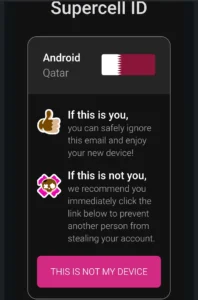
1. Tap on the “This is not my device” button, then you will be redirected to a webpage like this:
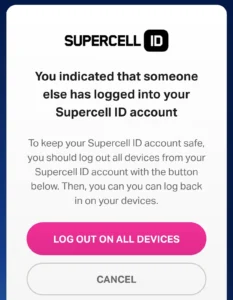
2. Tap the “Log out on all devices” button so you force all devices to get disconnected from the Clash of Clans account.
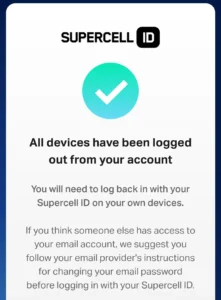
3. Doing this will also disconnect your device from the account. Wait one minute, then log back into your account
Step 3: Enable Account Protection
Enabling account protection and completing Step 4 finishes the security process on the game side. Activating account protection offers two critical benefits that make it mandatory for every player.
- Avoid the previous owner from recovering the CoC account: When this feature is enabled, no one can steal or take over your CoC account by contacting Supercell support. So, it is highly recommended for everyone to enable it ASAP.
- Help you change the supercell ID email: If you ever lose access to the Supercell ID email for any reason (e.g., you forget the password and can’t log back in), you can change the supercell ID email if account protection is enabled. I have written a thorough guide explaining how to recover your account and change the Supercell ID email address even without access to the original Supercell ID email.
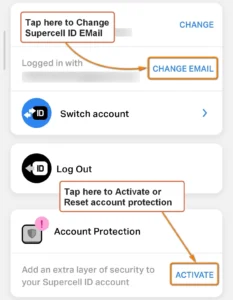
To turn on the Account Protection Feature, go into the in-game settings and follow the steps below:
-
Tap the “Activate” or “Reset” button.
-
Supercell will send a verification code to the Gmail address linked to your account. Enter this code.
-
Save the three unique recovery codes in a safe place, as these codes will be shown only once and are vital for account recovery if you lose access to your phone number.
-
Finally, enter your phone number and input the verification code sent to that number to complete the Account Protection setup.
Critical Warning: If Account Protection is already enabled by the seller (meaning you see a Reset button instead of Activate), contact the Seller immediately and ask him to change the phone number connected to the account protection to yours. Otherwise, the seller can easily change the Supercell ID email address by contacting Supercell support. So, even if you have secured the Gmail account and cut his access to the Gmail account, you will lose the account forever!
When you try to enable (or reset) this feature, Supercell may show an error saying, “We noticed that you are using a new device.” This is Supercell’s automated system preventing immediate changes.
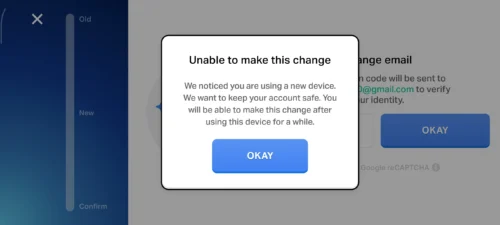
If you encounter this error, you must wait for the security cooling-off period before attempting the action again. This period is typically 3 to 4 weeks. Trying repeatedly before the time limit is over will not work and may reset the clock. So, my recommendation is to only try it once a week, starting from the second week of playing with your new CoC account.
Warning: After you activate the account protection, Supercell will give you three recovery codes. It is crucial that you record these codes offline (e.g., writing them down on paper) and store them securely. Never share these codes with anyone. If an unauthorized person gains access to even a single code, they can permanently steal your account in a matter of minutes.
Step 4: Change Supercell ID Email
The final step is to change your Supercell ID Email address. Open the in-game settings, find the Change Email button, and tap it.
First, Supercell will send a verification code to the old email address. After you enter that code, the game will ask you for your new email address.
Finally, Supercell will send one more verification code to your new email address. Enter that code, and your account will be linked to your new Supercell ID.
Note: No supercell accounts should be linked to the Email you provide. I recommend making a new Gmail account.
Note that, like for the account protection feature, this one also has a 3-4 week cooling-off period, and SuperCell doesn’t let you change it during this period. And you will encounter the error “We noticed that you are using a new device.
Trying repeatedly before the time limit is over will not work and may reset the clock. Most of the time, once you successfully turn on Account Protection, you can change the SCID email address immediately after, but that is not always the case.
Sometimes, based on my experience, you might need to wait a few more days between turning on Account Protection and changing the email address. Since turning on Account Protection is more important, I recommend you prioritize it before attempting to change the email.
How to avoid Supercell Lock or Ban your purchased CoC account
This is the most critical rule for preventing Supercell bans or locks and maintaining the account’s longevity.
The Golden Rule is to NEVER contact Supercell Support about any issue related to account login, verification, or history for your purchased account.
It matters because contacting them about a secondary account violates their Terms of Service, which triggers an investigation into the account’s origin (IP, device history) and almost always results in a permanent ban.
Things to avoid after purchasing a coc account
The risk for your account to get locked or banned by Supercell is slightly higher in the very first days or weeks. To minimize the possibility of your account being locked or banned by Supercell in the first few weeks, I highly recommend a minimum 7–10 day “cooling-off” period, where certain activities are strictly limited.
Only connect one device: Supercell monitors sudden, multiple-device logins, a major red flag for account sharing/selling, especially if it coincides with login from a different country or region IP address.
So, I recommend that during the first 10 days, you only log in and play with one device, then add the secondary device if you wish.
Note: Never log in to your account with multiple devices simultaneously; repeating this will cause your account to get locked by SuperCell.
Do not change the account name: Because you are logging in from a new device and region, changing the name too soon signals a recent ownership change, which can flag the account for manual review. I recommend waiting for one week, then, if you want, change the name of the account.
Delay any in-game purchases: Making a purchase too early on a new IP/device can signal a suspicious transfer to Supercell’s financial security team. So, waiting one week before making any in-game purchases is recommended.
Note: Never purchase multiple in-game items immediately in succession. For instance, if you bought a Gold Pass today, I recommend waiting one day before buying other items like map themes or hero skins.
Don’t play with a VPN or Proxy: Supercell tracks your login location using your IP address. Using a VPN or proxy immediately after logging in from a new device means your location is constantly changing. This is a red flag that can make Supercell instantly suspicious that the account is being sold or shared, which often leads to an account lock or ban. So, stick to your real, home internet connection.
Never share your account with anyone: Sharing login details with friends or family violates Supercell’s Terms of Service and is an instant trigger for investigation and a ban, especially if the account is new to you.
Summary & Timetable
The first half of the guide was allocated to critical steps you need to take (Things to Do), and the other half was about crucial rules you must follow to stay safe (Things to Avoid). By reading this guide thoroughly, and implementing all the notes carefully, I guarantee that your bought CoC account will be safe and secure forever.
The table below is a comprehensive timeline and summary that combines all the steps and rules from both sections, organized by when you need to perform or follow them. Follow this timeline to ensure your account is safe forever.
| Time Period | Actions to Take | Things to Avoid |
| IMMEDIATE (Day 0) |
1. Complete Linked Email Takeover Protocols (Password Change, Log Out All Sessions, 2FA, Recovery Info). 2. Contact Support immediately if the Google Security Hold is encountered. |
1. Contacting Supercell Support about the account (The Golden Rule). 2. Delaying the linked email security process. |
| First 7 Days (168 Hours) |
1. Maintain Single Device Use for all logins and gameplay. 2. Wait for the Google Security Hold to lift (if encountered). |
1. Connecting multiple devices. 2. Making any in-game purchases. 3. Changing the account name. |
| After 7 Days (Min.) |
1. You are safe to make in-game purchases (Gold Pass, gems, etc.). 2. You can safely use your free or paid name change. |
Continue to avoid all contact with Supercell Support and sharing your account. |
| Wait 3–4 Weeks | You are safe to attempt turning on Account Protection and changing the Supercell ID Email. | Repeatedly attempting to enable Account Protection or change the SCID Email. (try once a week) |
| After 1 Month (30+ Days) |
1. Finalize All Security: Confirm Account Protection is ON and the SCID is linked to your email address. 2. Keep the email login credentials in a safe place |
Sharing the Supercell ID email account or the CoC account with friends and family |
Start Your Journey with a Verified Account
By following this guide, you’ve taken the right steps to keep your account safe. However, one of the most important factors in account longevity is starting with a high-quality, professionally verified source. To protect your investment and skip the risks, browse our Clash of Clans accounts for sale, and choose an account with a lifetime warranty and instant delivery.